Sending a document for signature
Send boarding agreements, waivers, and other PDFs for digital signature from the Agreements tab.
Signature requests are sent from the Agreements tab, using Send Document. You can also start from a client’s Documents section with Request Signature.
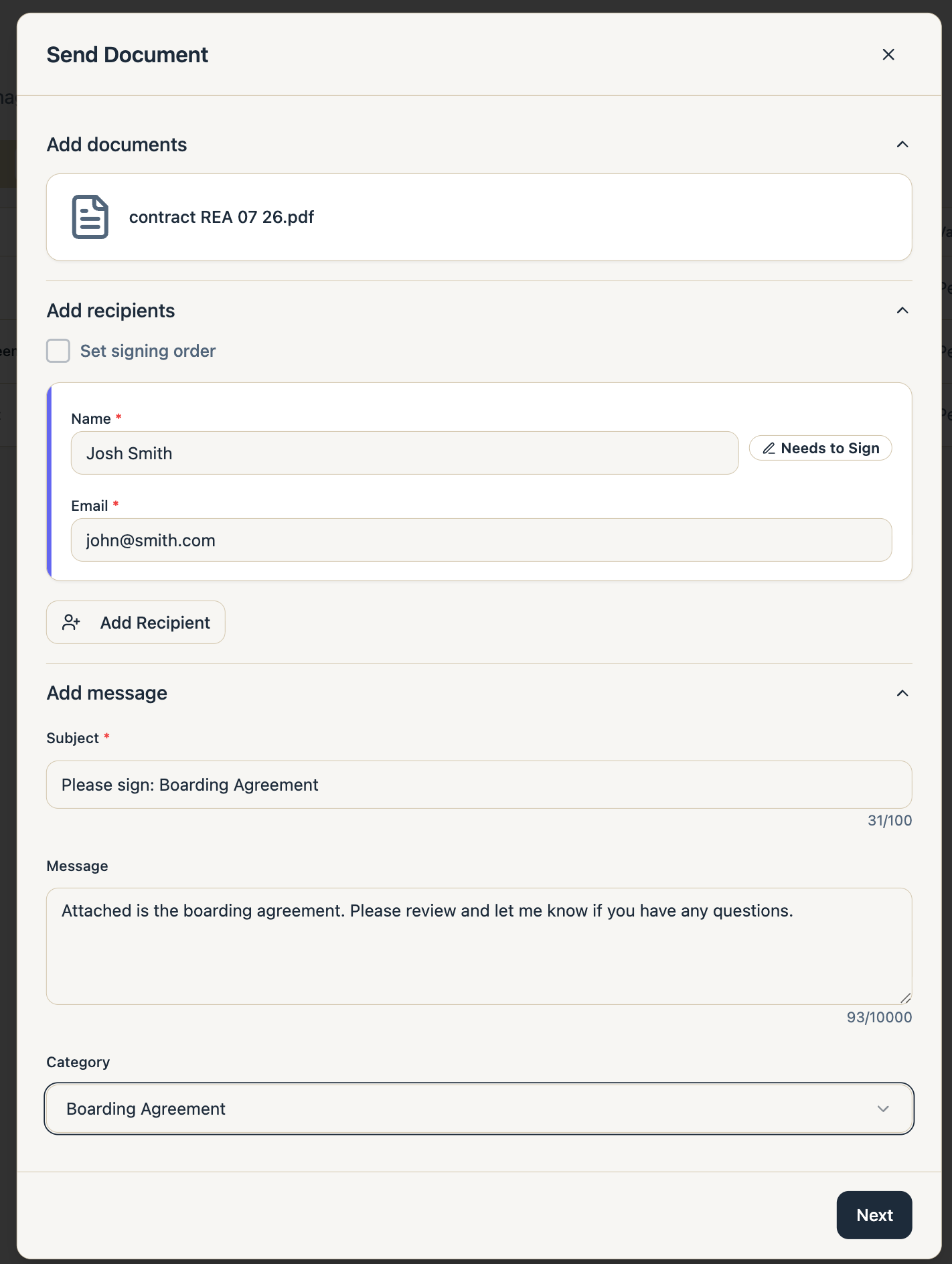
To send a document
- Add documents - upload a PDF or select one from your saved documents.
- Add recipients - name and email for each person who needs to sign. If several people must sign in sequence, check Set signing order and drag them into order.
- Add message - subject, an optional message, and a category (Boarding Agreement, Liability Waiver, Service Agreement, Termination Agreement, Horse Leasing Contract, or Other).
- Place fields - drop Name, Signature, Initials, Date Signed, Text, and Checkbox fields onto the PDF. Every recipient needs at least one signature field.
- Select Send. Each recipient gets an email link to sign; with a signing order, the next person is emailed after the previous one signs.
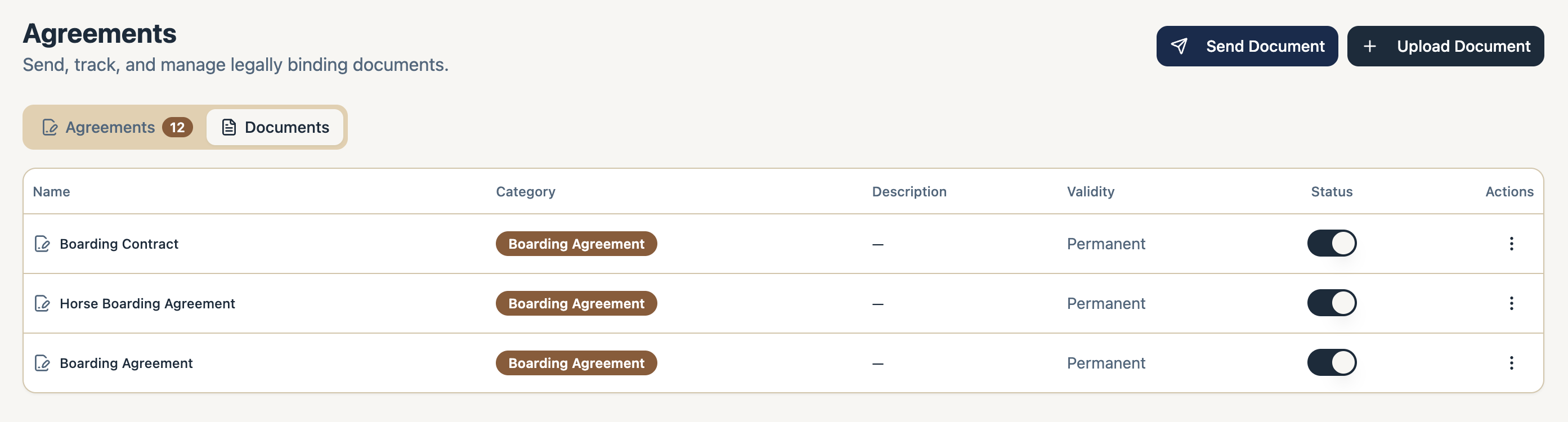
You can also upload Documents that can quickly be used again without having to re-upload each time.
To watch progress after sending, see Tracking signature status.